Fix Slow Wi-Fi No Tech Skills | 3 Quick Fixes Under 5 Min
Why Your Wi-Fi Is Slow (and the 3 Fixes You Can Do in Under 5 Minutes)
Slow internet connection ->Fix Slow Wi-Fi No Tech Skills
No passwords. No jargon. Just results — even if you’re “not techy.”
Good news: You don’t need tech skills. Most slowdowns stem from simple, fixable issues—not your provider or age.
Wi-Fi vs. Internet Speed: Know the Difference
Internet speed = what your provider (Comcast, Spectrum, etc.) delivers to your home — like water pressure from the main pipe.
Wi-Fi speed = how well your router shares that signal to your devices — like faucets and hoses in your house.
👉 If only some devices are slow (or it’s worse in certain rooms), the problem is almost always Wi-Fi — not your internet plan.
The 3 Fixes (All Under 5 Minutes)
🔧 Fix #1: Restart Your Router the Right Way
Time: 60 seconds | Works for: freezing videos, dropped calls, “connected but no internet”
1. Unplug the power cord (the black/white plug going into the wall).
2. Wait a full 30 seconds (count slowly — this clears glitches).
3. Plug it back in. Wait 2 minutes for the lights to stop blinking.
💡 Pro Tip: Tape a note to your router: “Unplug → Wait 30 → Plug in.” No tech words needed.
📶 Fix #2: Move Your Router (Just 6 Inches!)
Time: 90 seconds | Works for: dead zones, weak signal in living room/bedroom
Routers hate metal, thick walls, and microwaves. Try this:
- Place it centrally (e.g., on a living room shelf, not in a basement corner).
- Keep it elevated — not on the floor.
- Move it 3+ feet away from the microwave, cordless phone, or fridge.
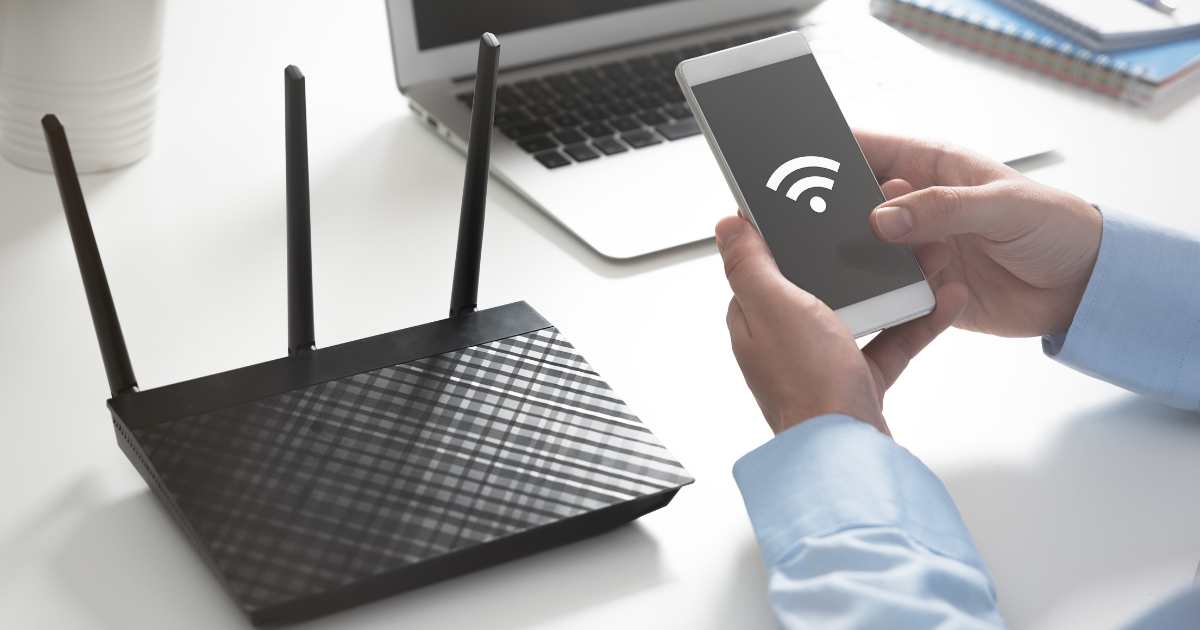
- Point antennas like a ✌️ (up and to the side).
No tools, no drilling — slide it forward on the desk.

📱 Fix #3: Reconnect Your Device the Smart Way
Time: 2 minutes | Works for: “Wi-Fi connected but nothing loads”
1. On phone or laptop: Open Wi-Fi Settings.
2. Tap your network name → choose “Forget This Network”.
3. Re-select your network and enter the password (check the sticker on your router).
🔒 Lost password? Look at the white label stuck to your router (bottom or back). Never guess — it’s printed there!
🚫 What Not to Waste Money On
Avoid these “signal booster” myths:
- Wi-Fi extenders from TV ads — often halve your speed.
- $20 “signal-boosting” stickers or pendants — zero scientific proof (FTC warns against these).
- “Free Wi-Fi scan” pop-ups — fake tech support scams. Close the tab!
✅ Only consider a mesh system (like Eero or TP-Link Deco) if your home is huge (>1,800 sq ft) and the three fixes above didn’t help.
✅ Final Check: “Is My Internet Actually Slow?”
After trying the fixes:
- On your phone or laptop, go to fast.com (no login needed).
- Note the speed (e.g., “85 Mbps”).
- Compare to your plan (e.g., “100 Mbps” on your bill).
- If Wi-Fi speed ≈ plan speed → your internet is working fine!
- If Wi-Fi speed << plan speed → focus on router placement/restarts.
Liked our article Fix Slow Wi-Fi No Tech Skills?
❤️ Share it with a friend, family member, or neighbor who says:
“My internet’s acting up again…”
🛠️ Need hands-on help?
We recommend: I Need A Techie
Trusted, patient, remote tech support —
designed for seniors and non-tech users. No contracts. No jargon.