How to Build a Personal Cloud Server with NAS: Step-by-Step Guide for Synology, QNAP & TerraMaster 2025
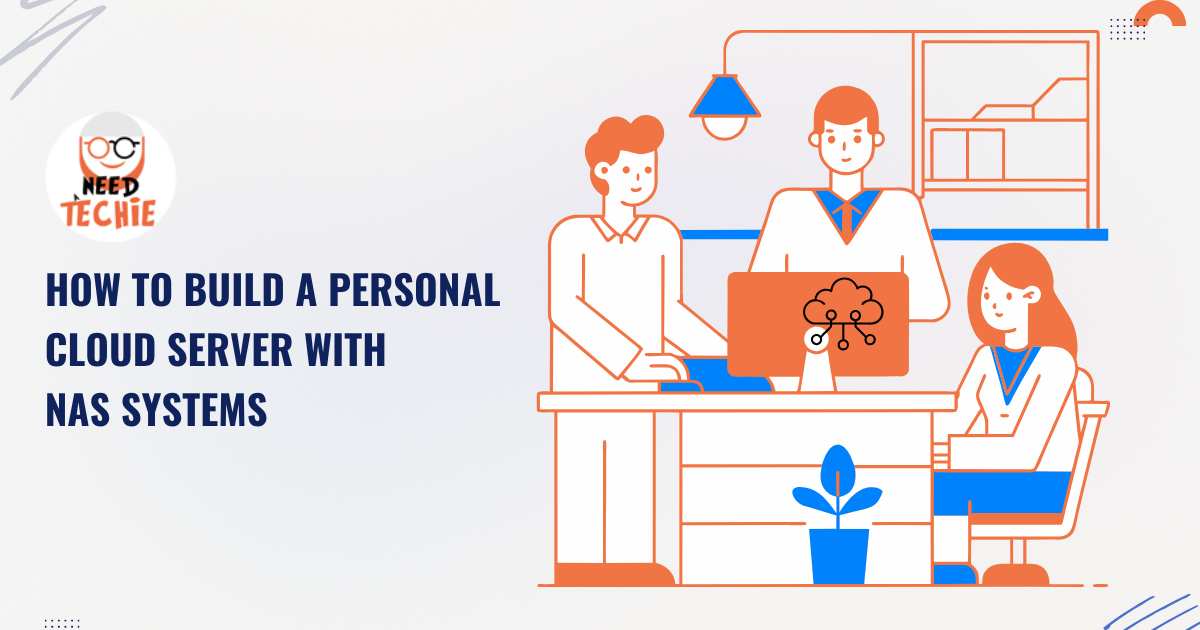
How to Build a Personal Cloud Server with NAS Systems
A step-by-step, privacy-focused guide for Synology, QNAP, and TerraMaster — with secure remote access, Nextcloud, Docker, and maintenance tips.
🌐 Goal: Your Own Personal Cloud Server
A self-hosted cloud server gives you full control over your data — no third-party vendors, no surprise shutdowns, and no hidden tracking.
✅ Benefits: Full data ownership, remote file access, automated backups, media streaming (Plex), password management (Bitwarden), and more — all from your home network.
🧰 Part 1: Choose Your NAS Hardware
Option A: Pre-Built NAS (Recommended for Beginners)
Reliable, polished, and easy to set up. Ideal if simplicity and long-term support are priorities.
| Brand | Best For | Pros | Cons | Recommended Models |
|---|---|---|---|---|
| Synology | Ease of use, apps, reliability | Polished DSM OS, huge app ecosystem, excellent mobile apps | Premium pricing | DS224+, DS923+, DS1522+ |
| QNAP | Power users, virtualization, multimedia | QTS Hero/ZFS, strong hardware, Container Station | Complex UI for beginners | TS-264, TS-464, TS-h1283XU |
| TerraMaster | Budget-conscious users seeking Synology-like features | Competitive pricing, solid Intel/AMD hardware, intuitive TOS UI, Docker support | Smaller community; fewer native apps | F2-210, F4-423, U16-730 |
💡 TerraMaster Insight: The F4-423 (4-bay, Intel N5095, 2×2.5GbE) offers ~40% better value than comparable Synology models — and TOS (TerraMaster OS) is remarkably user-friendly, with Docker, snapshots, and virtualization built in.
Option B: DIY NAS (Advanced Users)
Build using mini-ITX hardware + open-source OS:
- OS Choices: TrueNAS SCALE, OpenMediaVault (OMV), UnRAID
- Hardware: Intel Celeron J4125 / Ryzen Embedded, 8–16 GB RAM, ≥2 HDD bays
🛠️ Part 2: Initial Setup (Synology, QNAP & TerraMaster)
Step 1: Hardware & Power
- Install drives (e.g., 2×4TB WD Red Plus in RAID 1 for redundancy)
- Connect NAS to router via Ethernet (prefer 2.5GbE if available)
- Power on — wait 2–3 minutes for first boot
Step 2: Install OS & Create Admin Account
| Brand | Discovery Tool | OS Installer URL / App |
|---|---|---|
| Synology | Synology Assistant (desktop) or find.synology.com | DSM (DiskStation Manager) |
| QNAP Finder (desktop/mobile) | QTS / QuTS hero | |
| TerraMaster | TNAS PC (desktop) or TNAS mobile app | TOS (TerraMaster OS) |
During setup, accept the license, create an admin username, set a strong password, and skip vendor cloud services (e.g., QuickConnect, MyQNAPCloud, TerraMaster Cloud) — we’ll configure secure remote access manually.
Step 3: Configure Storage
- Synology: Storage Manager → Storage Pool → Create (use SHR for auto-RAID)
- QNAP: Storage & Snapshots → Storage/Snapshots → Create Storage Pool
- TerraMaster: Control Panel → Storage → Storage Pool → Create (RAID 1 for 2 drives, RAID 5 for 3+)
✅ Always choose Btrfs (if available) for checksums, snapshots, and self-healing.
☁️ Part 3: Set Up Your Personal Cloud with Nextcloud
Why Nextcloud?
Open-source alternative to Dropbox/Google Drive — with end-to-end sync, calendar, contacts, and collaborative editing (via Collabora or OnlyOffice).
Installation Methods
✅ Synology (Easiest)
- Open Package Center
- Search
Nextcloud→ Install official package - Launch → Complete setup wizard (admin account, data folder, SQLite DB)
✅ TerraMaster & QNAP (via Docker)
- Install Docker from App Center
- Download image:
nextcloud:latest - Launch container with port & volume mapping:
Container Name: nextcloud
Port: 7000 → 80
Volumes:
  /volume1/nextcloud_data  → /var/www/html
  /volume1/nextcloud_config → /var/www/html/config
Access at: http://[NAS_IP]:7000 → complete web setup.
🔐 Part 4: Secure Remote Access (No Vendor Middlemen)
Avoid QuickConnect/MyQNAPCloud/TerraMaster Cloud — they route traffic through third-party servers. Instead, use:
3-Step Secure Setup
- DDNS (Dynamic DNS):
Assign a free domain (e.g., yourname.synology.me, yourname.myqnapcloud.com, or yourname.tnashost.net).
Path: Control Panel → External Access (Synology) / Network & File Services → DDNS (QNAP/TerraMaster) - Let’s Encrypt SSL Certificate:
Free, auto-renewing HTTPS encryption.
Path: Security → Certificate → Add → Let’s Encrypt - Reverse Proxy:
Route https://cloud.yourname.domain → http://localhost:7000 (Nextcloud).
Path: Application Portal → Reverse Proxy (Synology) / Control Panel → Network → Reverse Proxy (TerraMaster/QNAP)
✅ Final URL: https://cloud.yourname.domain — fully encrypted, no telemetry, and under your control.
📲 Part 5: Access from Any Device
- Mobile (iOS/Android): Install the official Nextcloud app → log in with your domain
- Desktop (Windows/macOS/Linux): Download Nextcloud Desktop Client → auto-sync folders
- Web Browser: Full access at https://cloud.yourname.domainhttps://cloud.yourname.domain
🔧 Bonus: Extend Your Personal Cloud
| Service | Use Case | How to Install |
|---|---|---|
| Plex | Media streaming (movies, music) | Synology/QNAP Package Center → Plex Media Server TerraMaster: Docker (linuxserver/plex) |
| Vaultwarden | Self-hosted Bitwarden password manager | Docker: docker run -d –name vaultwarden … vaultwarden/server:latest |
| PhotoPrism | Google Photos alternative (AI tagging) | Docker (all platforms) |
| Home Assistant | Smart home hub | Docker or Synology/QNAP Virtual Machine Manager |
🛡️ Maintenance & Backup Best Practices
- Enable Snapshots: Hourly/daily point-in-time recovery (Btrfs/ZFS only)
- Local Backup: Use Hyper Backup (Synology), Hybrid Backup Sync (QNAP), or rsync (TerraMaster) to an external USB drive
- Offsite Backup: Use
rcloneto sync encrypted backups to Backblaze B2 (~$0.005/GB/month) - Update Monthly: OS, Docker containers, and apps
⚠️ Critical: Disable default vendor cloud services and telemetry in system settings — preserve your privacy.
📚 Recommended Resources
- Synology Knowledge Base (official guides with screenshots) Synology NAS
- TerraMaster Tutorials (setup, Docker, reverse proxy)
- TrueNAS Documentation
- YouTube: “Terramaster NAS 2024” for visual walkthroughs