IT Installation Portfolio: PoE Network, Workstations, VoIP, and Security
Project Summary
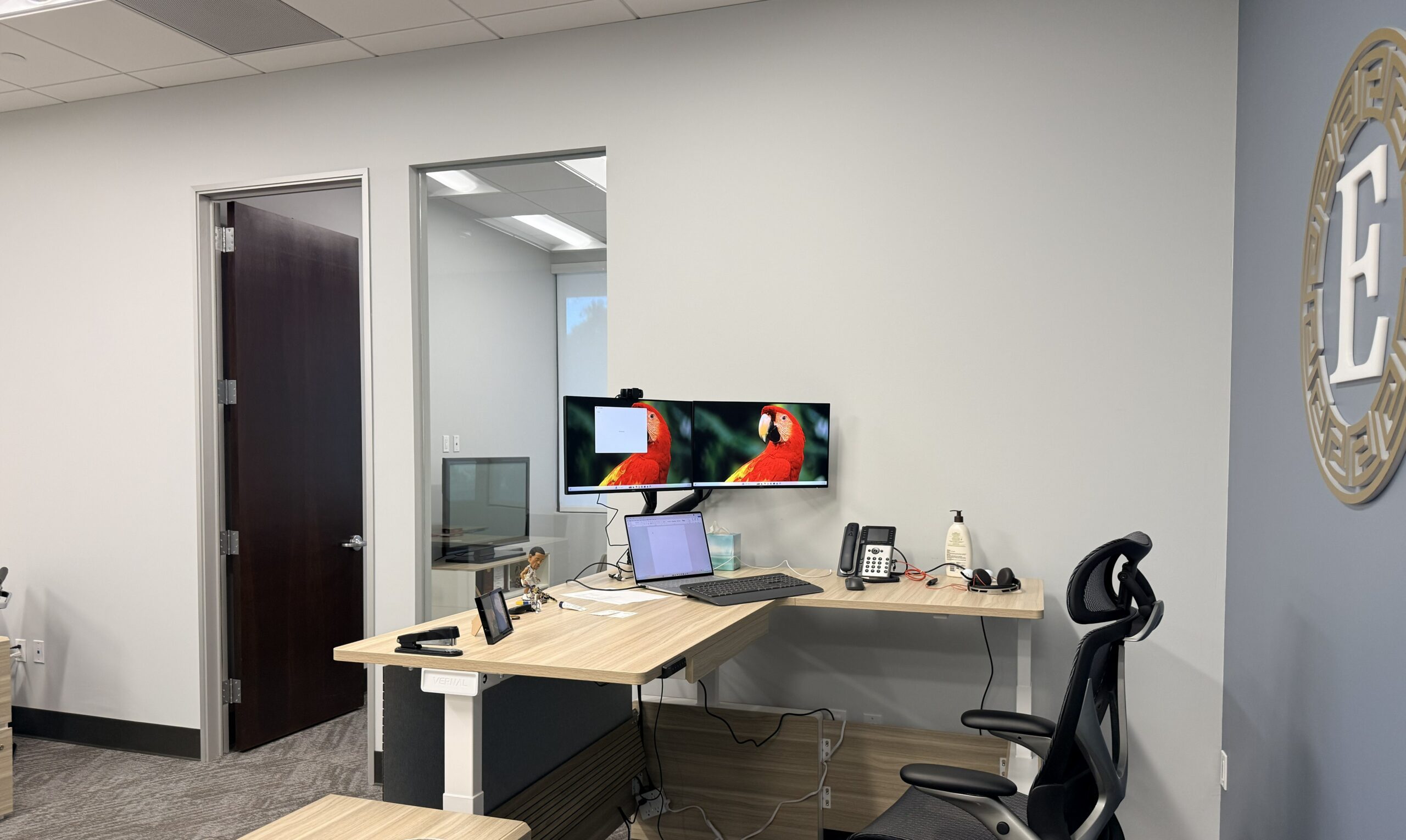
This portfolio documents the complete IT installation for a small office environment, covering physical network infrastructure, workstation deployment, voice services, wireless connectivity, and endpoint security. The installation supports 4 laptops with 6 monitors (2 per laptop), VOIP phones, WiFi access, docking stations, and shared folder access—all built on a foundation of a PoE switch connected to a patch panel for clean cable management and reliable power delivery. The design prioritizes PoE efficiency (single-cable power and data to access points and phones), scalable multi-monitor productivity (docking stations with dual displays per workstation), and layered security (hardened Windows endpoints, VLAN segmentation, and least-privilege file sharing).
Project Information
Project Overview
IT Installation Portfolio: PoE Network, Workstations, VoIP & Security
Full deployment for a small office: 4 laptops with dual monitors, docking stations, PoE switch, patch panel, VOIP phones, WiFi, shared folders, and endpoint security.
This portfolio documents a complete IT installation built on a PoE+ switch connected to a patch panel. It covers 4 business laptops with 6 monitors (2 per laptop), VOIP phones, WiFi access points, docking stations, shared folders, and layered security — all designed for clean cable management, reliable power delivery, and scalable growth.
Network Infrastructure
PoE Switch & Patch Panel Installation
The network core begins with a PoE+ switch (24-port, 370W budget) that delivers both data and power over Ethernet. Structured cabling from wall jacks is terminated on the rear of the patch panel using the T568B standard. Short patch cables connect the front of the patch panel to the switch ports — allowing flexible port reassignment without touching permanent wiring.
PoE validation: A PoE tester confirms 802.3af/at power delivery at each endpoint before connecting phones or access points. Typical draw: VOIP phones 5–7W, APs 10–15W.
Workstation Deployment
Laptops and Docking Stations
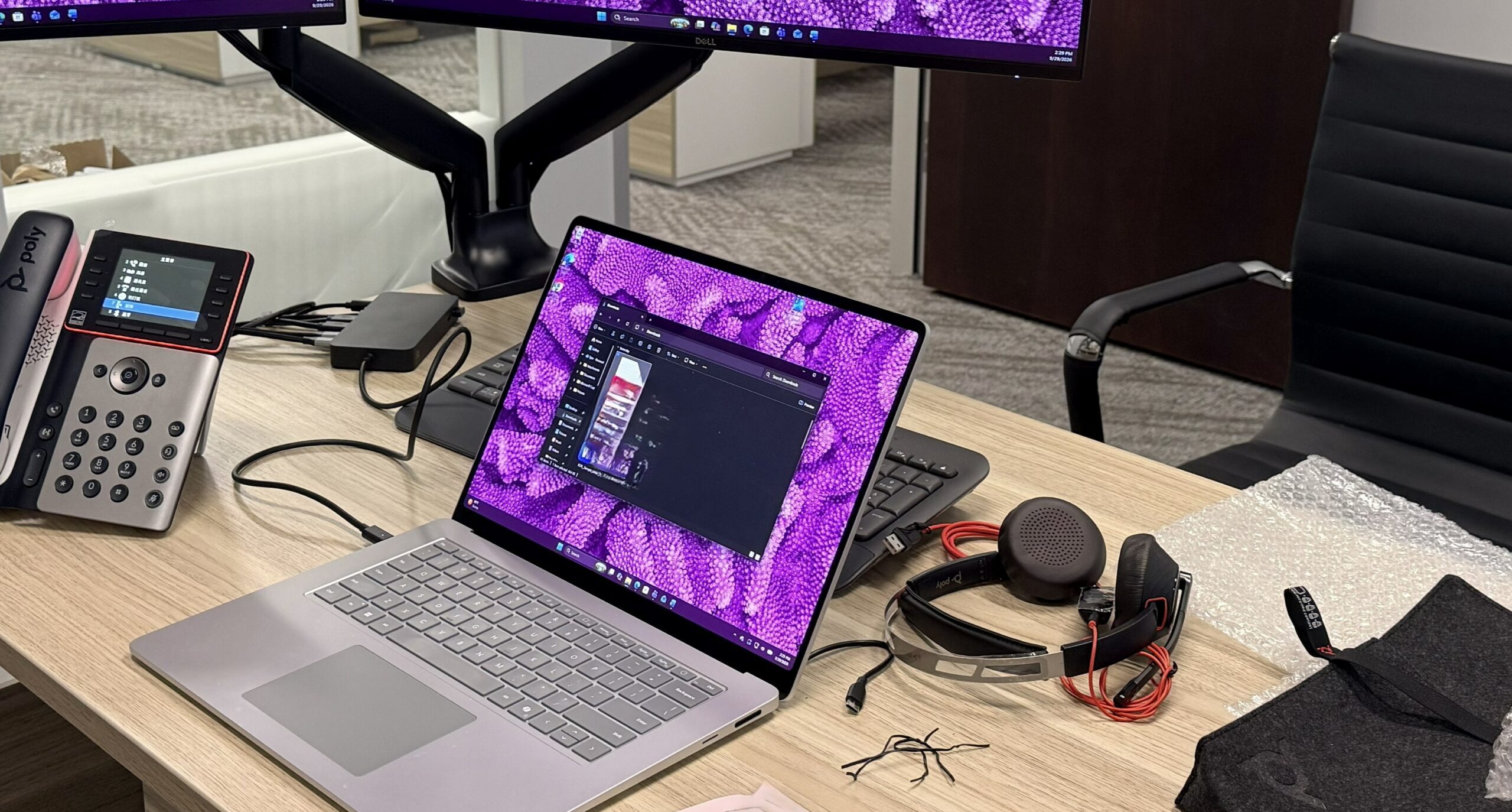
Four business-class laptops are paired with USB-C or Thunderbolt docking stations. The dock acts as a single connection point for power, dual monitors, wired network, and peripherals — reducing cable clutter and setup time.
Docking station selection criteria:
- DisplayLink or native GPU support for dual external monitors
- Power Delivery (≥90W) to charge the laptop through the same cable
- Sufficient video outputs (HDMI, DisplayPort, or USB-C) for two displays
- Gigabit Ethernet port for reliable wired connectivity at the desk
Dual Monitor Configuration
Each laptop drives two external monitors through its docking station. Standard setup:
- Connect the dock to the laptop via USB-C/Thunderbolt.
- Connect Monitor 1 and Monitor 2 to the dock’s video outputs.
- In Windows Display Settings, select “Extend these displays” (not duplicate).
- Arrange monitor positions to match physical layout (Monitor 1 left, Monitor 2 right; laptop display optional as third screen).
DisplayPort MST option: If monitors support DP 1.2 MST, daisy-chain Monitor 1 → Monitor 2 via DP-out. Enable MST in the monitor’s OSD menu. Note: separate cables from the dock are generally more reliable and easier to troubleshoot.
VOIP Phone Deployment
PoE-Powered Desk Phones
VOIP phones connect directly to PoE switch ports — receiving power and network over a single Ethernet cable, eliminating individual power adapters.
Provisioning approach:
- Zero-Touch Provisioning (ZTP) is preferred where supported — phones automatically retrieve configuration from the manufacturer’s cloud on first boot.
- DHCP options 66 and 160 should be left unconfigured if using ZTP, as they can interfere with automatic provisioning.
- For cloud VOIP (e.g., Zoom Phone): allow outbound connectivity to the service’s firewall endpoints, and enable QoS/DSCP marking to prioritize voice traffic.
Network readiness checklist before phone deployment:
- Confirm DHCP, DNS, and NTP are functioning
- Verify firewall ports for SIP signaling and media transport
- Test PoE power delivery at each phone location
- Document MAC addresses for inventory tracking
Wireless Network
WiFi Access Point Deployment
Wireless access points are ceiling-mounted and connected to the PoE switch — receiving power and data over a single cable. For an office of ~1,500–3,000 sq ft, 2–4 access points typically provide adequate coverage depending on wall construction and device density.
Configuration highlights:
- SSID segmentation: Separate SSIDs for staff, guests, and IoT/security devices.
- WPA3 encryption on all employee and guest networks.
- VLAN assignment: Each SSID maps to a distinct VLAN — isolating guest traffic from internal file shares and workstations.
- Cloud or controller-based management for centralized configuration and monitoring.
Security Implementation
Windows Laptop Hardening
Each of the 4 laptops receives a standardized security configuration:
Control Area Implementation Account Security Rename/disable default Administrator account; enforce 12+ character passwords; lockout after 5 failed attempts. MFA Require multi-factor authentication for all users; Windows Hello or FIDO2 hardware keys for critical accounts. Encryption Enable BitLocker full-disk encryption with recovery keys escrowed to IT. Application Control Use AppLocker or Windows Defender Application Control to block unauthorized executables. Attack Surface Reduction Disable SMBv1, Remote Registry, and unused services. Audit Logging Enable process creation logging with command-line capture; increase event log sizes to 64MB+.Password and Credential Management
Work credentials are stored in a team-approved password manager — never in browsers, Notepad, or local files. Browser password sync to personal Microsoft accounts is disabled for work profiles to prevent credential leakage to unmanaged devices.
Shared Folders
File Sharing Architecture
A dedicated file server or NAS hosts shared folders, organized by department or function. Share permissions and NTFS permissions work together — the effective permission is the most restrictive of the two.
Recommended folder structure:
\\server\Common— Read/Write for all staff\\server\Finance— Read/Write for Finance group only\\server\Public— Read-only for all staff
Permission best practices:
- Grant access to security groups, not individual users.
- Apply least privilege: most users get Read or Read/Write, not Full Control.
- Use Access-Based Enumeration (if supported) to hide folders users cannot access.
- Review permissions quarterly and remove access for departed staff.
For nested folders requiring different permissions (e.g., a “Special” folder inside “Common”), disable inheritance on the child folder and assign explicit permissions.
Network Segmentation Summary
VLAN Purpose Devices VLAN 10 Staff Workstations 4 laptops, docking stations VLAN 20 Voice VOIP phones VLAN 30 Wireless – Staff Laptops on WiFi VLAN 40 Wireless – Guest Visitor devices VLAN 50 Management Switch, APs, serverInter-VLAN routing is restricted by ACLs: guest VLAN cannot reach staff or server VLANs; voice VLAN prioritizes QoS for SIP/RTP traffic.
Installation Validation Checklist
- Patch panel terminated to T568B; tested with cable certifier
- PoE switch delivers correct wattage to each AP and phone (verified with PoE tester)
- All 4 laptops recognize both external monitors via docking station
- Display arrangement set to “Extend” and positions match physical layout
- VOIP phones registered and able to place/receive calls
- WiFi SSIDs broadcast on correct VLANs; guest isolation verified
- Windows hardening applied via Group Policy or MDM
- BitLocker enabled on all laptops; recovery keys escrowed
- Shared folders accessible with correct permissions; unauthorized access denied
- Documentation complete: port map, IP assignments, MAC inventory, credentials vault
Conclusion
This installation delivers a clean, scalable, and secure IT environment built on a PoE foundation that simplifies power and connectivity for phones and access points. The 4-laptop deployment with dual monitors and docking stations supports productive multi-tasking, while layered security — from Windows hardening to VLAN segmentation — protects data and communications. Shared folders with least-privilege permissions enable collaboration without exposure. The result is an office network that is easy to manage, secure by design, and ready for growth.
MAC inventory, IP assignments, and credential vault maintained by IT.

Nick Ecomomos
"Really solid write-up. Covers everything — PoE switch, patch panel, laptops, dual monitors, VoIP, WiFi, security — without the fluff. Checklists and setup steps are super practical. Makes me want to tackle my own office setup. Nice work!"